Import/Export via Excel
Just like with tag projects, you can import and export your sign projects. I'd suggest starting with using spreadsheets with tag projects first as importing sign projects is more involved when compared to tags.
Want a quick start?
Send a blank email (no Excel attachments) to excel+signs@tagify.com and Tagify will reply back with a blank starter sheet.
Ok, feeling good? Let's get started.
Getting started
When it comes to your sign project, you can import (uploading a spreadsheet) and export (downloading the project as an XLSX).
While editing a sign project on the web:
- Click the Tools button up top.
- Click Export to Excel or Import from Excel.
Exporting
When exporting a project, Tagify will create an Excel file based on your signs. This is a great way to get an idea of what Tagify is looking for when importing a project later on.
Importing
Sign projects are much more complicated than tag projects so your sheet has a lot more going on. Each sheet has a bunch of tabs:
- Instructions
- Priced
- Multi-Priced
- Template
- Fixed
- Sign Library
- Settings
Info tabs
Both Instructions and Sign Library are just for you to check out.
- Instructions: a quick run through of how importing works. Short on time? Read that instead of this.
- Sign Library: a list of every ready-to-use sign in your company. Makes it easy to grab Sign ID's to then use in your sign tabs.
Sign type tabs
Each sign type has it's own tab. All of them share the same way to use a sign with the Sign ID column. You can use the Sign Library to quickly grab any ID's you need and just paste them into the corresponding sign type tab.
- Priced
- Priced signs are looking for a Sign ID, package and price.
- Multi-Priced
- Multi-Priced signs are looking for a Sign ID, package(s) and price(s). Depending on how you exported your sheet, you'll see "Package Name 1", "Price 1" and so on that lines up with how many total price points that are on your specific multi-priced sign.
- Template
- Template signs are looking for a Sign ID and some content with the Text column. This is plain text only so if you need to style text, use the website.
- Fixed
- Fixed signs are looking for a Sign ID and a quantity.
Settings
In the Settings tab, you've got a couple values you can change:
- Project name
- The name of your project. Can be left blank.
- Customer
- Either the exact name or account number of the customer you want to attach this project to.
- Notes
- Your project notes.
Where to get sign ID's
Since we're primarily using signs by their ID's, where do we get them? Couple places:
- You can use the Sign Library tab.
- Admins can grab them while editing signs.
- Admins can also export all signs to a sheet (similar to the Sign Library tab) or export specific signs under a brand.
After uploading
After uploading your sheet, you'll be shown a breakdown of each sign type in your sheet. For example:
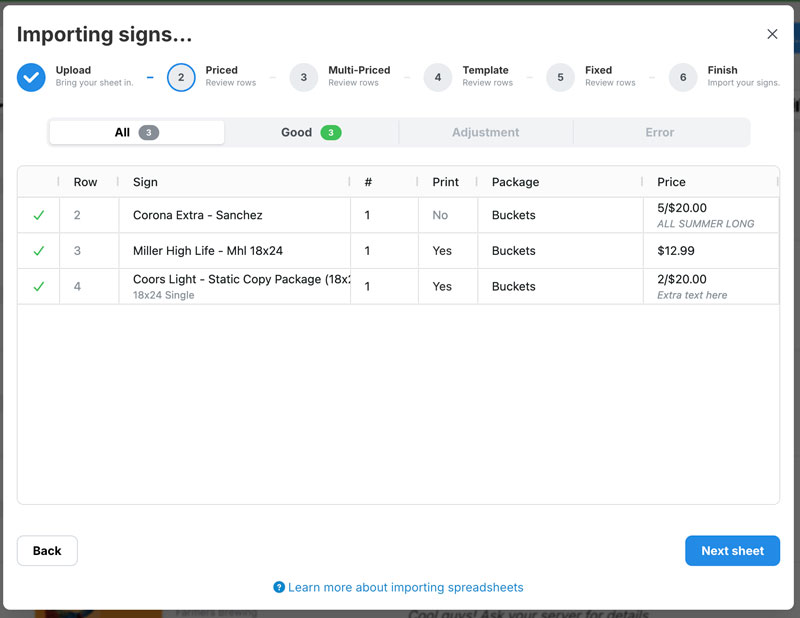
From here, you'll see any errors or adjustments Tagify has found. Depending on the cell, you can treat it like an Excel sheet and just make any changes you need from right there. No need to update the sheet and re-upload.
After you go through each sign type, you can then have Tagify update your project.
Email?
When you feel comfortable with Tagify using your sheets, you can skip going to the web entirely. Just send your spreadsheets as attachments to excel+signs@tagify.com
Tagify will take your sheets, convert them into projects and email the final signs back to you. Very similar to making a sign project via the iOS app.
You can also send a blank email (no spreadsheet attachments) to excel+signs@tagify.com and Tagify will reply back with a blank starter sheet for you to use.